There are two different decisions
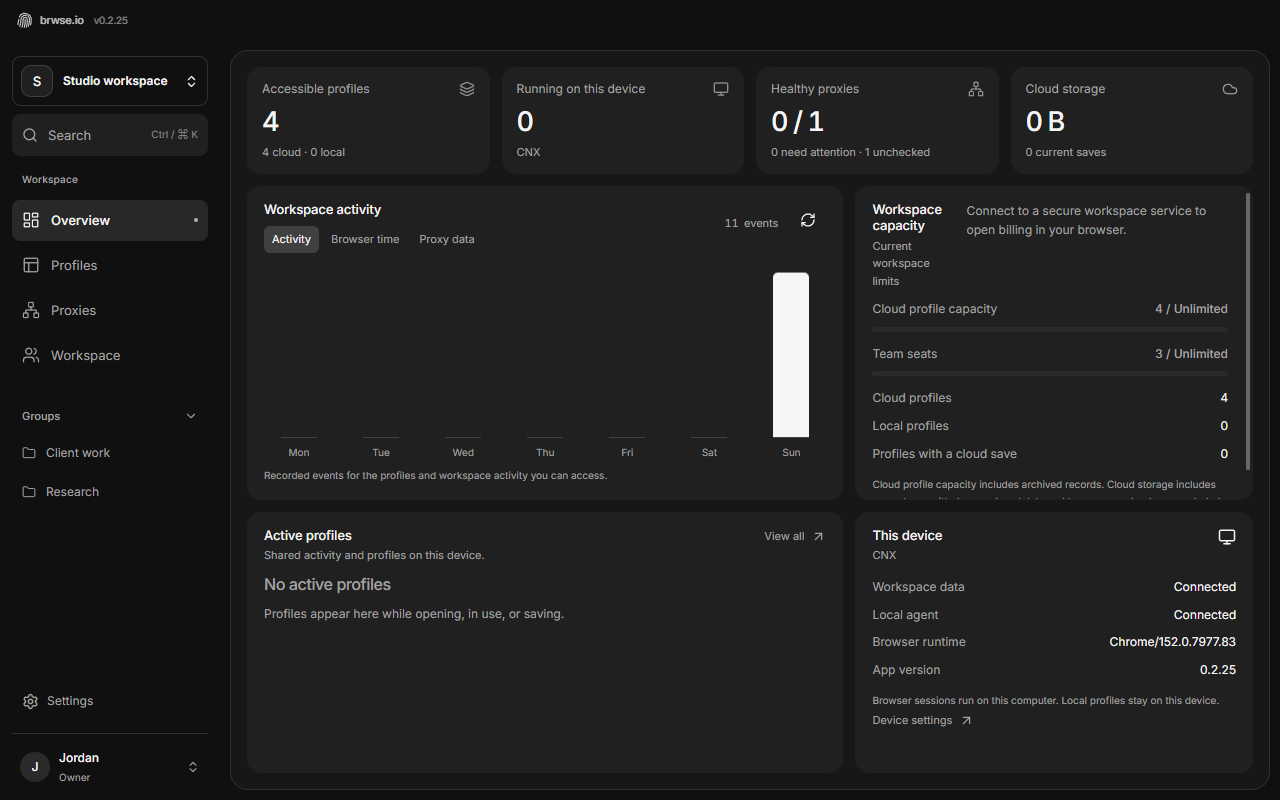
Where a browser runs and where its data is saved are separate questions. In brwse.io, browser sessions run on your computer through the desktop app. Choosing cloud saving does not turn the profile into a remotely hosted browser.
That distinction makes the rest of the workflow easier to understand. The desktop app handles the active browser. The workspace organizes profile settings, access, and supported saved data. The web dashboard is where you can manage that workspace without opening a browser session.
Choose local for work that belongs on one computer
A local profile lives on its owning device. It is useful for an individual workflow tied to that computer, or when the profile's browser data should not be part of a shared cloud snapshot. Give it a clear name and use tags so it is easy to find again.
Local does not mean disposable. Browser history, sessions, and other data can remain in a profile directory between launches. Treat a local profile archive as sensitive material, and keep your device and backups protected. Before changing or exporting browser data, stop the browser and let it finish writing.
Local saving also does not make every operation independent of the service. Account access and shared workspace actions can still require connectivity. A cloud profile with a recent local copy is not automatically an offline profile.
Choose cloud for supported team handoffs
A cloud profile has shared metadata and can store supported browser snapshots. This is useful when an authorized teammate needs to pick up the same workspace on a compatible desktop. Name the profile for the work it represents, assign it to a group, and make access explicit.
Think of a handoff as a small sequence: stop the browser, wait for the save to finish, then let the next person open it. A browser that has stopped is not necessarily a browser whose latest data has finished uploading. The profile's saving status is the useful signal.
brwse.io separates the profile settings from its browser snapshot. Updating the profile name does not prove that its most recent browsing session was saved. Look at the actual cloud-save status and timestamp before you move devices or hand work to a teammate.
Know what a snapshot can carry
The current snapshot format covers supported bookmarks, history, localStorage, IndexedDB, service-worker data, session files, and preferences. Restoring a snapshot requires the same browser major version; Windows and macOS snapshots restore on either system, and Linux restores its own. Each snapshot is limited to 32 MiB compressed and 64 MiB before compression, independently of the workspace storage allowance.
New cloud saves include supported ordinary cookies; older saves may not. Supported Windows runtimes also sync browser-saved passwords after the browser closes and saving completes. Device-bound session keys, payment autofill, extensions, the separate manual account vault, and downloads remain excluded. Some websites may require sign-in again. Passkeys and hardware-backed credentials are not portable profile files.
Members who can use a cloud profile can use its saved logins. Cloud saves use application-managed encryption and brwse.io can decrypt them; this is not end-to-end encryption. Do not assume Windows password support applies to other operating systems, and wait for a completed save before handing a profile over.
The desktop app's manual saved-account vault is available for local profiles only. It is separate from native browser password saving and does not supply browser autofill. When evaluating a handoff, check the documented limits for the exact data your workflow needs, rather than relying on a general label such as “cloud profile.”
A practical way to choose
Start with the smallest workflow that solves the real problem. Keep an individual research context local if one computer is its natural home. Use a cloud profile when supported browser state needs to be shared, and establish who can access the group before putting sensitive work into it.
- Choose a descriptive name that makes the profile's purpose clear.
- Decide whether it needs a local workflow or a supported cloud handoff.
- Set the group and permissions before inviting teammates to use it.
- For cloud profiles, verify the save has completed before changing devices.
- Keep a recovery plan for data that remains tied to the original computer.